NX Remote Play

Setup guide

Join the Discord server to chat, find people to play with, or request a personal demo with me. We can arrange a time there.

Which screen would you like to play on?

Windows

The Windows app playing Super Mario 64, with the toolbar on top, the session controls on the right and the connection status at the bottom.

The Windows app is the most complete way to play. It can play your Switch, share it with friends, record it and more.

Get playing

  1. Connect your Switch

    With a USB cable: plug the Switch into your PC. The app opens it by itself.
    Over the internet: on the Switch choose Host This Switch. On the PC choose Connect To A Switch, type the Session ID and Password, and click Join.

    The Windows start screen with the Connect By USB card.The Windows Connect To A Switch form with Session ID, Password and Join. The codes are hidden.
  2. Watch the picture appear

    The Switch’s screen fills the window, with sound. The bar at the bottom shows how it’s connected.

  3. Play!

    Plug in a controller and press a button. It works like a controller plugged into the Switch.

What else you can do

Bridge Mode: your PC as the Switch’s home base

Plug the Switch into your PC by USB and play it right there, with the best picture and every tool in the app. The PC also takes over sharing, which makes remote play better: the Switch’s own Wi-Fi can only send so much, so it sends one clean stream down the cable and the PC’s stronger connection passes it on. Friends get a smoother picture and join exactly as before, with your Session ID and Password. It also adds browser play with Local and Public links, and up to three players, each with their own controller.

Let a friend play from anywhere (Public link)

Plug the Switch into your PC by USB. In the bar at the bottom, next to Public, click Copy and send the link to your friend. They open it in any web browser and play. No app needed. The app asks your router to open the right ports by itself. If your router doesn’t allow that, the link only works at home.

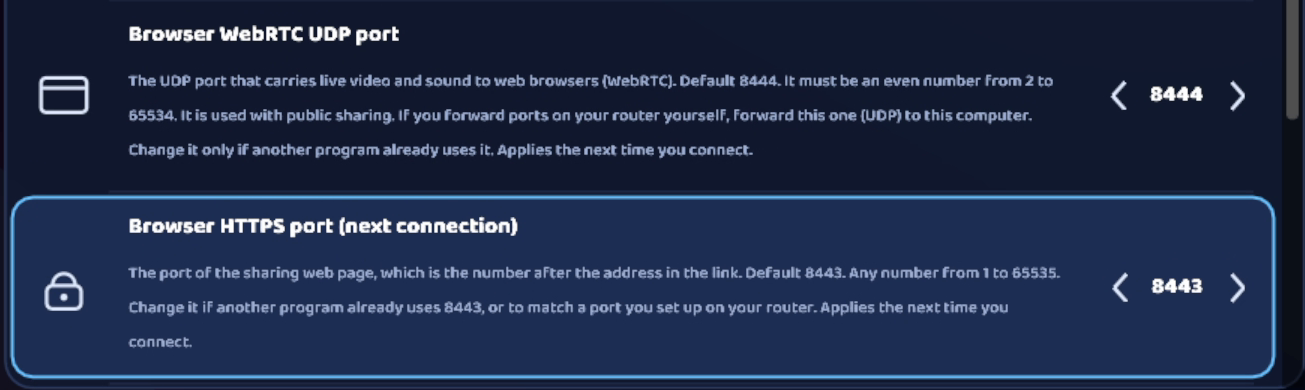
The Public link in the bottom bar with its buttons. The address is hidden.Web Sharing settings for the browser ports.

Play in a browser at home (Local link)

With the Switch plugged in by USB, find Local in the bottom bar. Click the QR code button and scan it with a phone, or click Copy and open the link on another computer. It only works on your home Wi-Fi.
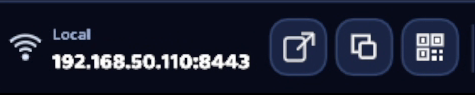
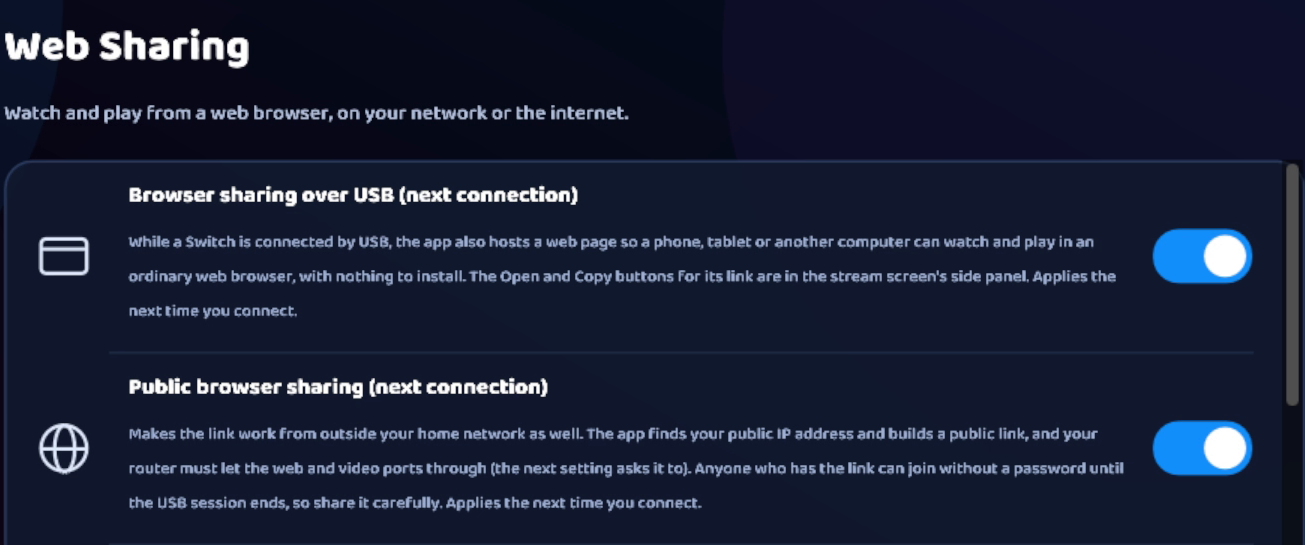
The Local link in the bottom bar with its buttons.Settings, Web Sharing, with Browser sharing over USB.

Take screenshots and record videos

Click Screenshot or Record in the side panel (open it with Menu). Pictures are saved as PNG files and videos as MP4 files. Choose where they go in Settings → General. Turn on Copy screenshots to clipboard to paste pictures straight into a chat.

The side panel: Fullscreen, Screenshot, Record, Rotate View, Home, Controller, FPS overlay, volume and Disconnect.Settings, General, with the Screenshots folder and Recordings folder.The Copy screenshots to clipboard setting.

Show your game in OBS, Discord or Zoom

Turn on Virtual camera in Settings → Playback & Controls. Then pick NX Remote Play Camera as your camera in the other program. It sends just the game picture.
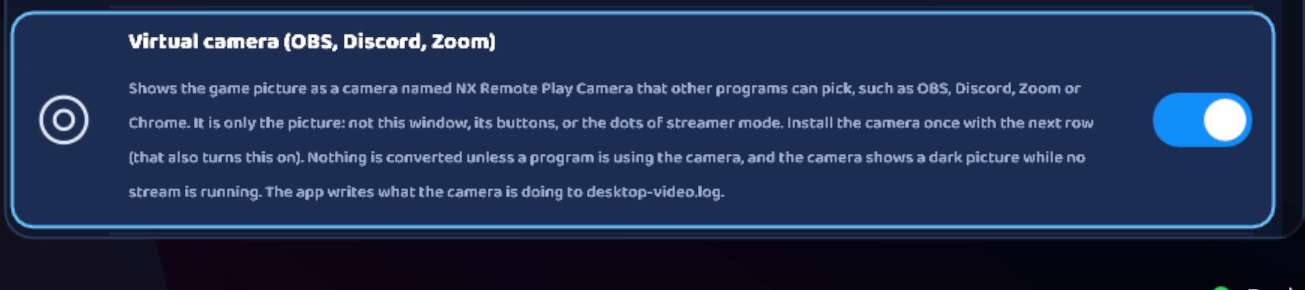
The Virtual camera (OBS, Discord, Zoom) setting.

Fullscreen, rotate, HOME and shortcuts

The side panel has Fullscreen, Rotate View (for games played sideways), Home and a volume slider. Hide UI leaves only the game. Keyboard shortcuts: F fullscreen, S screenshot, R record, T rotate, Up/Down volume.
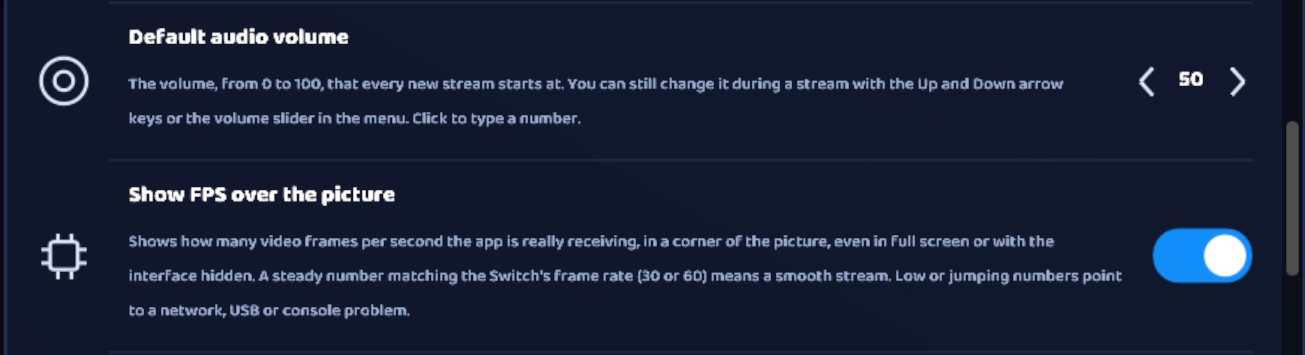
Settings for the starting volume and the FPS counter.

Controller options

Controller: On in the side panel sends your controller to the Switch. Turn it off to stop. The big round button in the middle of your controller presses HOME on the Switch. You can change that in Settings → Playback & Controls, and you can also use a controller to move around the app’s menus.
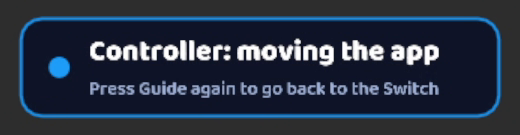
The status showing the controller is moving the app instead of the Switch.

Hide your codes while streaming (Streamer mode)

Turn on Streamer mode in Settings → General. Your Session ID, links and addresses turn into dots, so it’s safe to show your screen on a stream or video.

The Streamer and Hide UI buttons in the top toolbar.

All the other settings

General: folders, Streamer mode, hiding the Switch’s serial number. Connection & USB: which server to use, opening a USB Switch by itself, and turning the Switch’s own screen off while you play. Playback & Controls: picture sharpness, sound, FPS counter, virtual camera, shortcuts and controllers. Web Sharing: Local and Public links, router ports and a trusted certificate so browsers don’t show a warning. Advanced & Performance and Diagnostics & Logging: fixes for picture problems, and Export logs if you need help. You can leave all of these as they are.
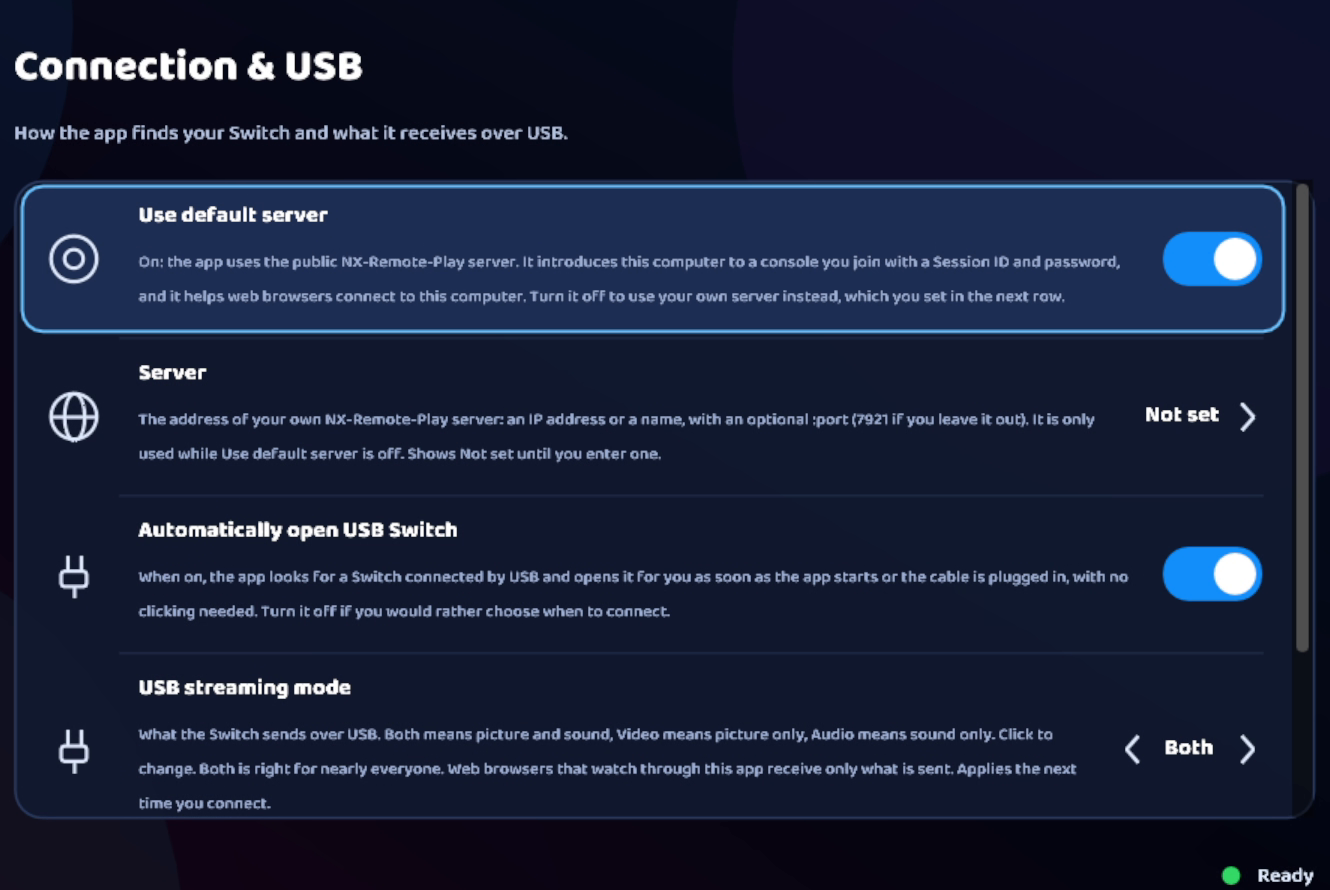
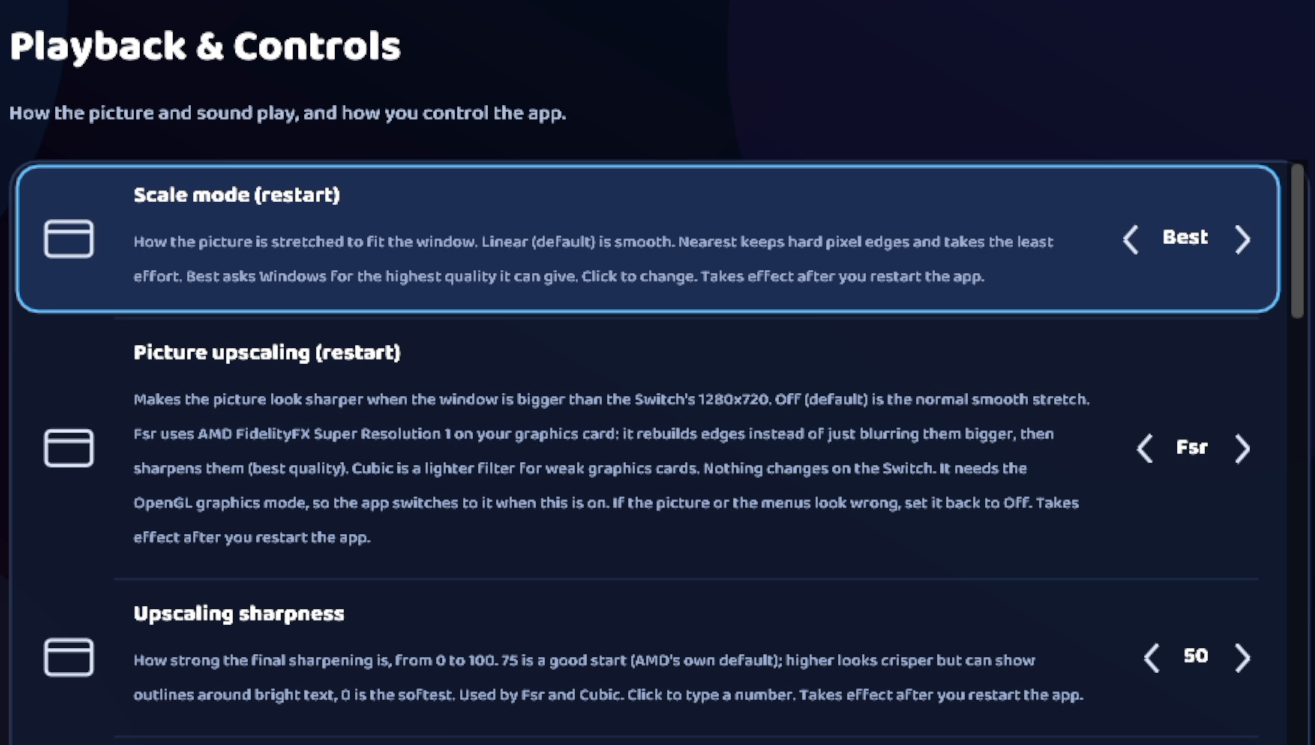
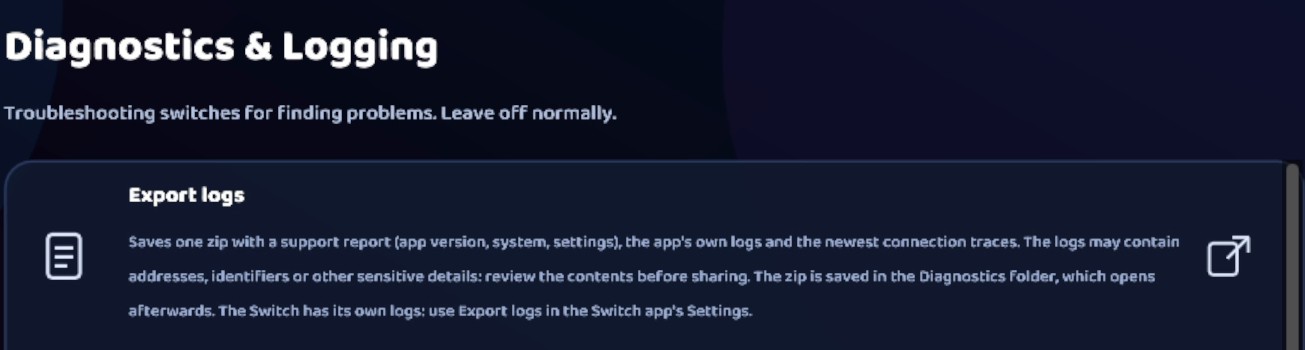
Settings, Connection and USB.Settings, Playback and Controls, with picture options.Settings, Diagnostics and Logging, with Export logs.

Android

The Switch HOME menu on an Android phone, with arrow buttons, the L stick, and A and B buttons on screen.

Play your Switch on an Android phone or tablet with touch buttons, from home or anywhere.

Get playing

  1. Start hosting on the Switch

    On the Switch, open NX Remote Play and choose Host This Switch. Select Turn On Hosting if you see it. Leave the screen open: it shows a Session ID and Password.

    The Switch app with Connect To A Switch and Host This Switch.The Switch host screen. The Session ID and Password are hidden in this picture.
  2. Join from your phone

    Open NX Remote Play on your phone and turn it sideways. Tap Connect To A Switch, type the Session ID and Password, and tap Join.

    The Android start screen with Connect To A Switch and Settings.The Android Join A Switch form. The codes are hidden.
  3. Play!

    The Switch’s screen appears with touch buttons. Use the arrows or L stick to move, A to choose and B to go back.

What else you can do

The ☰ menu: HOME, controls and leaving

Tap the floating circle with three lines ☰. Home goes to the Switch’s HOME menu. Controller has the button options. Exit stops playing. Drag the circle if it’s in the way.

The floating three-line menu button over the game.The open menu with Home, Controller and Exit.

Move, hide or reset the touch buttons

Open ☰ → Controller. Edit layout lets you drag the buttons, then Save layout. Hide controls and Show controls hide them or bring them back. Vibration / reset turns button buzzing on or off and puts the buttons back where they started.

The Controller menu with Edit layout, Show controls and Vibration / reset.Editing the touch button layout.The Vibration / reset options.

The buttons don’t move anything

The Switch may not have noticed your phone yet. On the Switch, open Controllers → Change Grip/Order. On your phone, hold the on-screen L and R together. When it shows up, tap A.

Sharper picture and sound timing

In Settings → Testing, Picture upscaling makes a big picture look sharper (FSR or Cubic; reconnect after changing it). If the sound crackles, raise Audio delay. It starts at 100 ms.

Picture upscaling and Audio delay settings.

Android TV and Google TV installation

To use NX Remote Play on the TV, install the Android APK directly on your Android TV or Google TV device. This is called sideloading; you do not install it through the TV’s Play Store.

  1. Transfer the APK. Use the NX Remote Play Android APK from the project’s release package. Copy it from your phone or computer with a TV-compatible file-transfer app, or use a USB drive if your TV supports one. Use a file manager on the TV to find the transferred file.
  2. Allow the installation. Open the APK. If the TV blocks installation, choose Settings in the prompt and allow Install unknown apps for the file manager or transfer app opening it. Depending on the TV, this setting may be under Apps → Special app access or Device Preferences → Security & restrictions → Unknown sources. Menu names vary by device.
  3. Install and open the app. Return to the APK and select Install, then Open. If no home-screen tile appears, look under Settings → Apps → See all apps → NX Remote Play → Open. You can turn the installer’s unknown-app permission off again afterward.
  4. Connect a controller and join. Pair a Bluetooth controller with the TV, then open NX Remote Play and select Connect To A Switch. Enter the hosting Switch’s Session ID and Password, then select Join.

This also lets a Switch Lite stream to the TV. If the controller does not respond in the game, open Controllers → Change Grip/Order on the Switch and press L and R together on the paired controller.

A Switch Lite’s Controllers screen on an Android TV through the Android app.

All the other settings

Connection: leave Use default server on unless you run your own server. Force cellular data uses mobile data even with Wi-Fi on. Testing: Video over UDP is an experimental video path. Leave it as it is. About: your app version, and Export logs to save a file that helps if something goes wrong.

Android Settings with Connection, Controller, Testing and About.Android Connection settings.

Done playing

Tap ☰ → Exit. On the Switch, choose Turn Off Hosting so nobody else can join.

The menu with Home and Exit.

iPhone and iPad

Super Mario 64 in the iPhone Safari viewer, with touch controls, sound options and the Safari toolbar. The server address is hidden.

There’s no iPhone app to install. You play in the browser, using a link from someone whose Switch is plugged into a Windows PC (that can be you).

Get playing

  1. Get the link

    At home, scan the QR code next to Local in the Windows app. Away from home, ask the person with the PC to send you their Public link.

    The Local link in the bottom bar with its buttons.The Public link in the bottom bar with its buttons. The address is hidden.
  2. Open it

    Tap the link. The Switch’s screen appears with touch buttons under it. If the browser warns that the page isn’t secure, that’s the app’s own certificate. You can carry on.

  3. Play!

    Use the touch buttons, or connect a controller to your iPhone or iPad.

What else you can do

Add it to your Home Screen

Open Menu → Install as an app, or tap Share → Add to Home Screen in Safari. It then opens like an app, full screen.

Fill the screen

Turn your device sideways. Full screen on rotate hides everything except the game. Turn it back to see the buttons again.

Show or hide the touch buttons

Open Menu and turn On-screen buttons off to hide them for a clear picture, or on to bring them back. The buttons stay in fixed places; they can’t be moved like in the Android app.

The browser player menu with fullscreen, sound, controller and touch options.

Use a game controller

Connect a controller to your iPhone or iPad and press a button. Configure controller in the menu shows what each button does on the Switch.

Sound, touch screen and HOME

Sound starts off, because browsers don’t let pages play sound by themselves. Open Menu and tap Sound. Turn on Touch screen to tap and drag on the picture like the Switch’s own screen. The HOME button goes to the HOME menu.

Sharper picture, stats and Streamer mode

Sharper picture makes a big picture look crisper. Stats on picture shows the frame rate. Streamer mode hides the ID and password.

Web browser

Super Mario 64 playing in a desktop web browser, with the fullscreen, sound, controller and touch settings open.

Play on any computer, tablet or phone with nothing to install, using a link from someone whose Switch is plugged into a Windows PC (that can be you).

Get playing

  1. Get the link

    At home, use the Local link from the Windows app (Copy it or scan its QR code). Away from home, ask for the Public link.

    The Local link in the bottom bar with its buttons.The Public link in the bottom bar with its buttons. The address is hidden.
  2. Open it

    Paste it into your browser. The Switch’s screen appears. If the browser warns that the page isn’t secure, that’s the app’s own certificate. You can carry on.

  3. Play!

    Plug in a controller and press a button, or turn on the on-screen buttons. Open Menu and tap Sound to hear the game, because sound starts off.

What else you can do

Fullscreen and hiding the menu

Open Menu → Fullscreen. Hide UI (or the H key) leaves only the game.

The browser player menu with fullscreen, sound, controller and touch options.

Set up your controller

Open Menu → Configure controller and press a button so the page finds it. You can see what each button does on the Switch and change it, then choose Save layout. Turn Controller off if you only want to watch.

On-screen buttons and touch screen

On-screen buttons shows touch controls. Touch screen lets you tap and drag on the picture like the Switch’s own screen.

HOME and sound

Sound starts off, because browsers don’t let pages play sound by themselves. Open Menu and tap Sound. The HOME button goes to the Switch’s HOME menu.

Sharper picture, stats and Streamer mode

Sharper picture makes a big picture look crisper. Stats on picture shows the frame rate. Streamer mode hides the ID and password.

Install it like an app

Menu → Install as an app adds it to your computer or phone so it opens in its own window.

Something went wrong?

Menu → Export logs saves a text file you can send with your problem. It holds no passwords or IDs.

Switch

The Switch app with two cards: Connect To A Switch and Host This Switch.

The Switch app does two jobs. It shares your Switch so others can play it, and it lets one Switch play another.

Share your Switch

  1. Open Host This Switch

    Open NX Remote Play and choose Host This Switch.

  2. Turn hosting on

    Select Turn On Hosting. If it says Turn Off Hosting, it’s already on.

    Refresh ID and Password and Turn Off Hosting on the Switch host screen.
  3. Share your codes

    Give the Session ID and Password only to people you want to play. They stay the same for 60 days, unless you make new ones.

    The Switch host screen. The Session ID and Password are hidden in this picture.

What else you can do

Play another Switch from this one

Choose Connect To A Switch, type the other Switch’s Session ID and Password, and choose Connect. To press HOME on the other Switch, hold − and +. Hold L + R + ZL + ZR to switch your controller between the two Switches.

The Switch Connect To A Switch form. The codes are hidden.

Get new codes

On the host screen, choose Refresh ID and Password. Anyone with the old codes can’t join any more.

Refresh ID and Password and Turn Off Hosting on the Switch host screen.

Stop sharing

Choose Turn Off Hosting. Nobody new can join until you turn it back on.

Settings

Export logs saves a file to the SD card that helps if something goes wrong. You’ll also find the connection server and whether the system patches are installed. You can leave these as they are.

The Switch app settings for the connection server.