 NX Remote Play
Web player
Play in any browser, including iPhone and iPad, from a Windows PC’s link.
The web player lets anyone play your Switch in a web browser, with nothing to install. It works on iPhone, iPad, Android, Mac, Windows and Chromebook. It always starts from a Windows PC that has the Switch plugged in by USB, so the PC must stay on and connected while people play.
How browser play works
The Windows app plays the Switch over USB and, at the same time, runs a small web page for other devices. A Local link opens that page on your home Wi-Fi. A Public link opens it from anywhere on the internet. Up to three people can join at once, in browsers or apps, each with their own controller on the Switch.
The person with the PC turns this on and hands out the link. The Windows page of this wiki covers that side.
Get the link
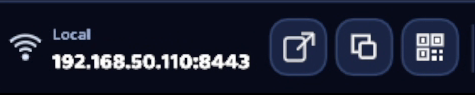
- On the same Wi-Fi as the PC: in the Windows app’s bottom bar, click the QR code button next to Local and scan it with your phone’s camera. Or click Copy and open the link on another computer.
- Anywhere else: the person with the PC copies the Public link and sends it to you.
The link includes a key for this session, so you won’t need a password. It stops working when the USB session ends. If you open the page without a key, it asks for the Switch’s Session ID and Password instead. That works only while a Windows PC is sharing that Switch.
Open it
- Open the link. The first time, your browser may warn that the page isn’t secure, because the Windows app makes its own certificate. Choose to continue. (The person with the PC can remove this warning for Public links with an automatic certificate.)
- The page connects and the Switch’s screen appears.
- Sound starts off. Browsers don’t allow pages to play sound by themselves, so open ☰ Menu and tap Sound to turn it on.
Play
There are three ways to control the Switch from a browser:
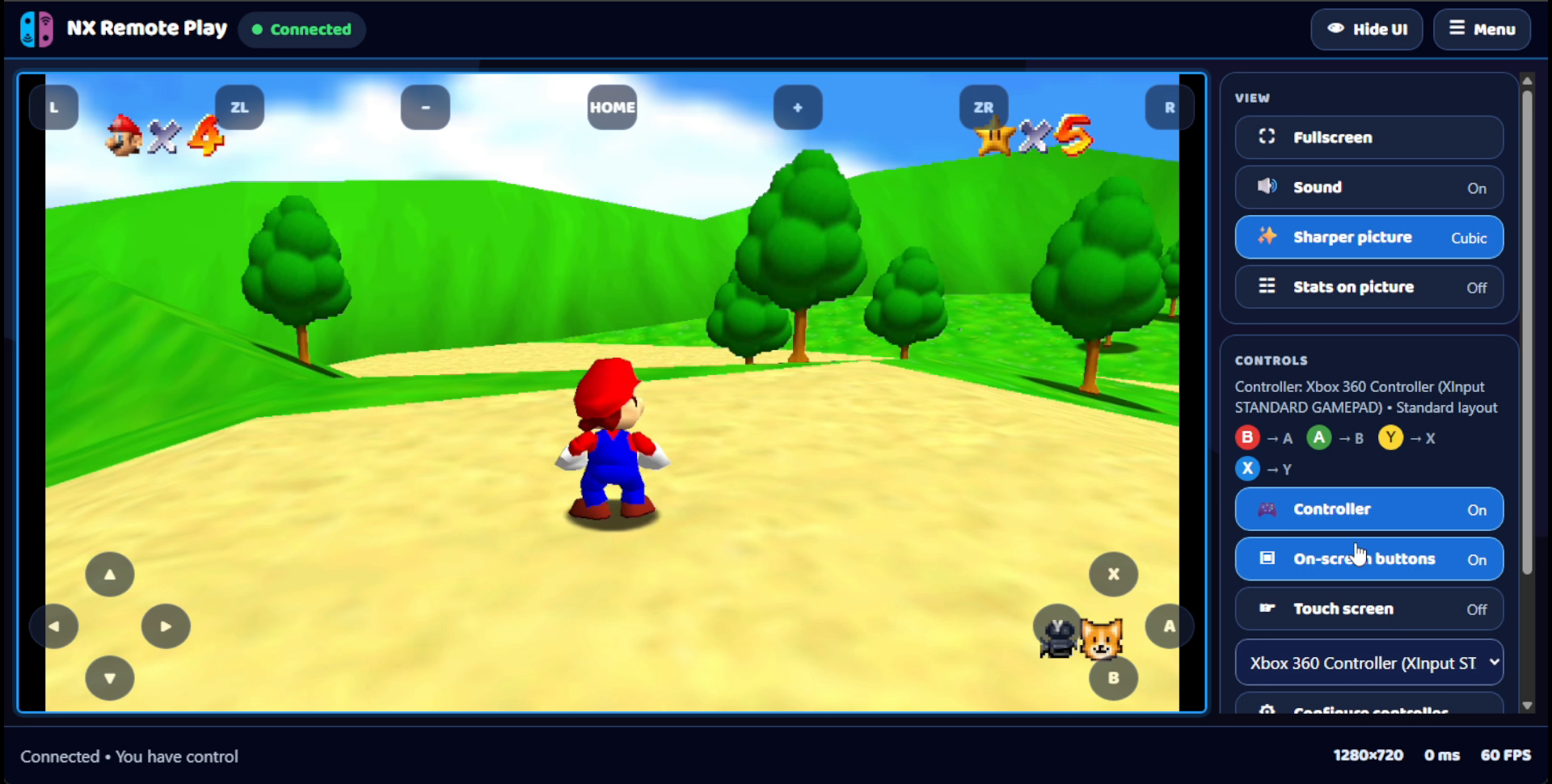
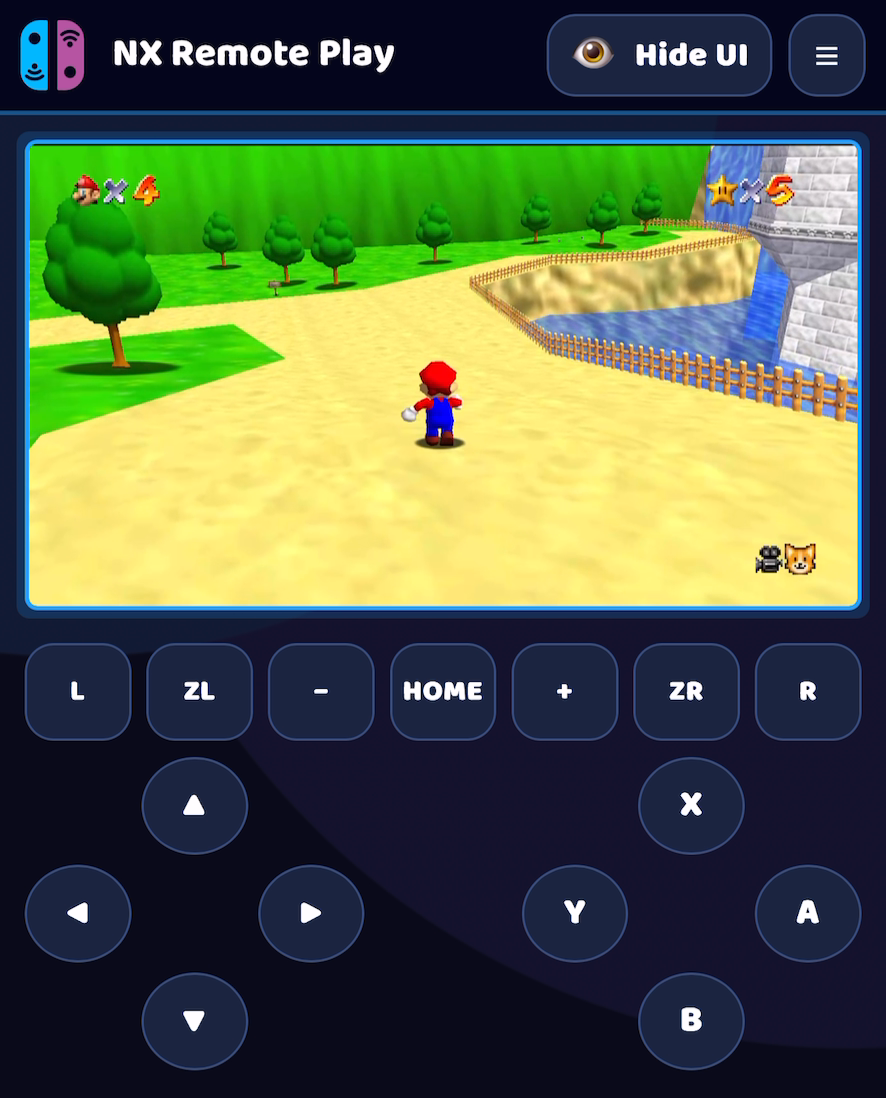
- On-screen buttons: L, ZL, −, HOME, +, ZR, R, the arrows, and A, B, X and Y. They’re on by default on phones and tablets. On a computer, turn them on in the menu. They stay in fixed places and can’t be moved.
- A game controller: plug in or pair one with your device and press a button so the page notices it.
- Touch screen: tap and drag on the picture, like touching the Switch’s own screen. Turn it on in the menu.
If the Switch doesn’t react to your buttons, someone at the Switch may need to open Controllers → Change Grip/Order while you press L and R together.
The menu
Tap ☰ Menu at the top. Its items are grouped like this:
View
- Fullscreen: fills the screen.
- Sound: turns sound on or off.
- Sharper picture: uses a sharper enlarging filter when the picture is shown bigger than the Switch’s 1280×720.
- Stats on picture: draws the frame rate, or full details, over the picture.
- Full screen on rotate: on a phone, turning it sideways hides everything but the game, and turning it back brings the buttons back. On by default.
Controls
- Controller: when off, this page sends nothing to the Switch and doesn’t take a player slot. Use it to just watch.
- On-screen buttons and Touch screen: described above.
- Configure controller: shows what each button on your game controller does, and lets you change it. Press a button or move a stick to see its number, then choose which Switch button it should be. Choose Save layout, or Reset layout to go back to normal.
Other
- Install as an app: adds the player to your device so it opens in its own window. On iPhone and iPad there’s no install button: tap Safari’s Share button, choose Add to Home Screen, then open it from your Home Screen for full screen.
- Export logs: saves the current page’s log as
NX-Remote-Play-web-log-<timestamp>.txt. Export before refreshing or closing the page. Save through your browser’s download or share sheet, review the file, and collect the Windows and Switch logs too. Follow the log collection and GitHub issue steps. - Disconnect: leaves the session.
Hide UI at the top (or the H key) hides everything but the game. The join screen also has Streamer mode, which hides the ID and password as you type them.